
MaxxECU Installation
Wiring
Because aftermarket ECU installations are all customized, you'll need to purchase the appropriate length wiring harness and/or CANBUS hub for your installation from your ECU manufacturer, or wire something up yourself. WENDLab gauges use a standard DTM04-4P connector, which is plug and play with many aftermarket vendor wiring solutions. You'll need an open CANBUS port to connect to your WENDLab gauge. If you don't have an open CANBUS port, you may need to add a CANBUS hub or splitter to make one available.
If you're unsure what you need for your specific installation, please consult your tuner/installer.
This is what the pins on the back of the device do. The socket is a Deutsch DTM04-4P that accepts a DTM06-4S plug.
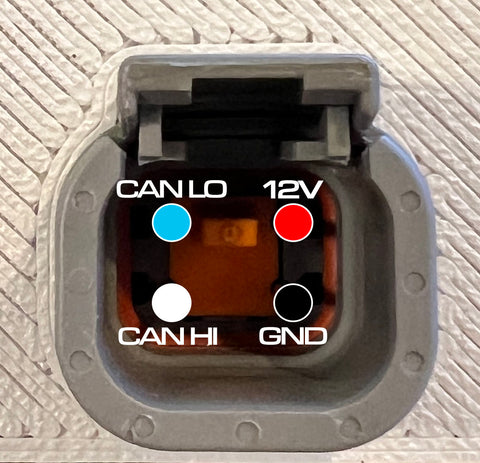
MaxxECU Race
You'll need to wire CAN Hi (34pin connector MX1, Pin 16), CAN Lo (34pin connector MX1, Pin 15), 12v power and chassis ground to a DTM06-4S plug with enough length to reach the gauge install location. The power and ground are required to operate the gauge device. The ground does not need to be a sensor ground referenced to the ECU. A chassis ground is sufficient.

Then, in the MaxxECU MTune Software, configure your CAN settings as below. The relevant settings are
- CAN 1 Bitrate : 1Mbps
- Output Protocol : MaxxECU Default v1.3
- CANID Offset : 0
If you have other devices that transmit CAN at 500kbps on the same bus, you can lower the CAN speed to 500kbps, but you MUST make sure the gauge is also configured to transmit at that speed as well.


App Setup
Open the GaugeControl App
IOS : https://apps.apple.com/us/app/gaugecontrol/id6450934826
or
Android : https://play.google.com/store/apps/details?id=com.wendlab.gaugecontrol
The IOS and Android Apps look slightly different, but provide identical functionality :

and click "Find a Gauge" to search for devices over Bluetooth.

You'll see any WENDLab devices in Bluetooth range in the list that appears. Select your device from the list. When you want to reconnect later, you use the "slide to connect" slider to reconnect to the last device you used.

App features
From the main screen, the GaugeControl app allows you do select the gauge type and appearance of each display in your WENDLab gauge as well as update the firmware over the air to provide bugfixes and new features. If a firmware update is available, you'll see an "Update FW" button. If you're on the latest version, this won't appear. You can access an additional configuration screen in the top right hand corner via the = icon.

In the configuration screen, you can configure warning levels for multiple monitored parameters. If the ECU reports a value above the Maximum or below the Minimum configured value, you'll receive a warning indicator on the gauge. For single analog-style gauges, the digital readout will turn red and the background of the gauge will turn orange. For digital multi-gauge faces, the parameter that's gone in to warning state will turn red.

You can also choose your ECU type on this screen with the "ECU Mode" selector. Please confirm that the value displayed here matches your ECU platform if you don't see the gauge displaying ECU data.
The "Demo Mode" function displays a graphic on each screen.